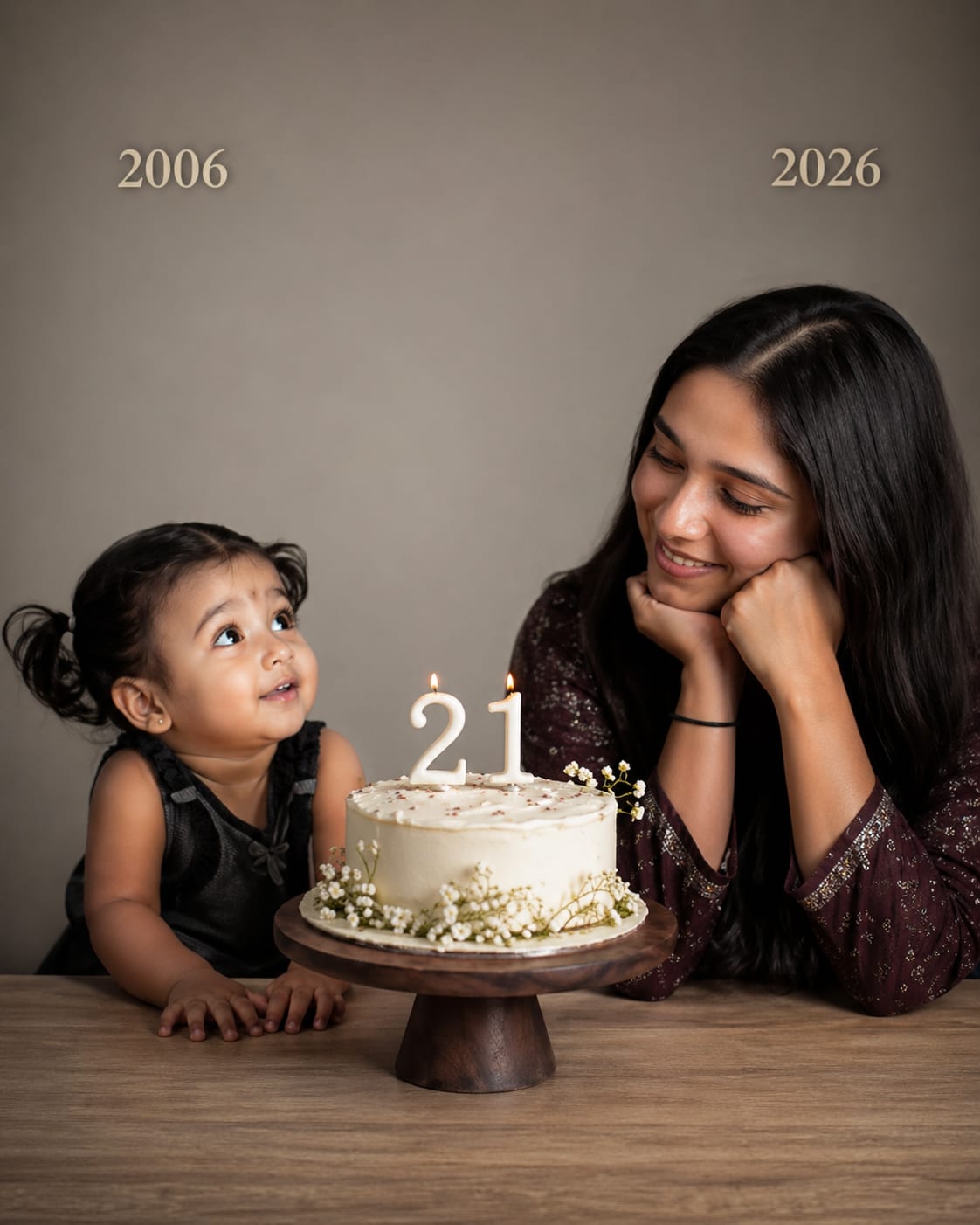
What is Stable Diffusion?
Stable Diffusion is an open-source AI image generation model developed by Stability AI. Unlike Midjourney or DALL·E 3, Stable Diffusion is completely free to download, run locally on your own computer, and customise to your specific needs. This makes it the most flexible and powerful option for users who want full creative control without subscription fees.
Because it is open-source, a massive global community has built thousands of custom models, styles, and plugins on top of Stable Diffusion. You can find community-trained models specialised for anime, realistic photography, architecture, product design, and almost every visual style imaginable.
Stable Diffusion can be run through user-friendly interfaces like AUTOMATIC1111 or ComfyUI (for advanced users), or accessed online via platforms like Stability AI's DreamStudio, Invoke AI, or Leonardo.ai for users who do not want to install anything locally.
How to Use Stable Diffusion — Step by Step
Choose how to access it
- Online (easiest): Use DreamStudio.ai, Leonardo.ai, or Invoke AI — no installation needed.
- Local install (free, most powerful): Download AUTOMATIC1111 from GitHub and run it on your computer. Requires a GPU with at least 4GB VRAM for good results.
Choose your model
Different models produce different styles. SDXL (Stable Diffusion XL) is the flagship for photorealism and general use. Community models like Realistic Vision, DreamShaper, and epiCRealism are popular for portraits. Download models from civitai.com — a free community hub.
Write your positive prompt
Describe what you want in the image. Include subject, style, lighting, and quality modifiers. Example: "portrait of a young Indian man, traditional kurta, soft studio lighting, sharp focus, 8k, photorealistic, bokeh background"
Write your negative prompt
Stable Diffusion uses negative prompts to exclude unwanted elements. A standard negative prompt for photorealism: "ugly, blurry, low quality, deformed, extra limbs, watermark, text, low resolution, bad anatomy"
Adjust settings
- Steps: 20–30 is standard. Higher steps = more refined but slower.
- CFG Scale: 7–9 is the sweet spot. Higher values follow your prompt more strictly.
- Sampler: DPM++ 2M Karras is a reliable default.
- Resolution: 512×512 for SD 1.5, 1024×1024 for SDXL.
Generate and iterate
Click Generate. Review the output. Adjust your prompt or settings and regenerate until you get the result you want.
Pro Tips for Stable Diffusion
Use quality boosters in every prompt
Add "8k, ultra-detailed, sharp focus, professional photography, award winning" to the end of almost any prompt. These terms consistently improve output quality.
Start with a community model, not the base
The base Stable Diffusion model produces average results. Download a community fine-tuned model from civitai.com for dramatically better outputs in your chosen style.
Use ControlNet for precise control
ControlNet is a Stable Diffusion plugin that lets you control the pose, composition, depth, or line art of the generated image. It is the single most powerful upgrade for serious users.
Save seeds for consistency
Each generated image has a unique Seed number. Save the seed of an image you like and reuse it — it locks in the randomness and lets you make incremental prompt changes while keeping the overall composition similar.
Latest Stable Diffusion Prompts
Copy and paste these directly into Stable Diffusion